Series: Ccmanager (4/10)
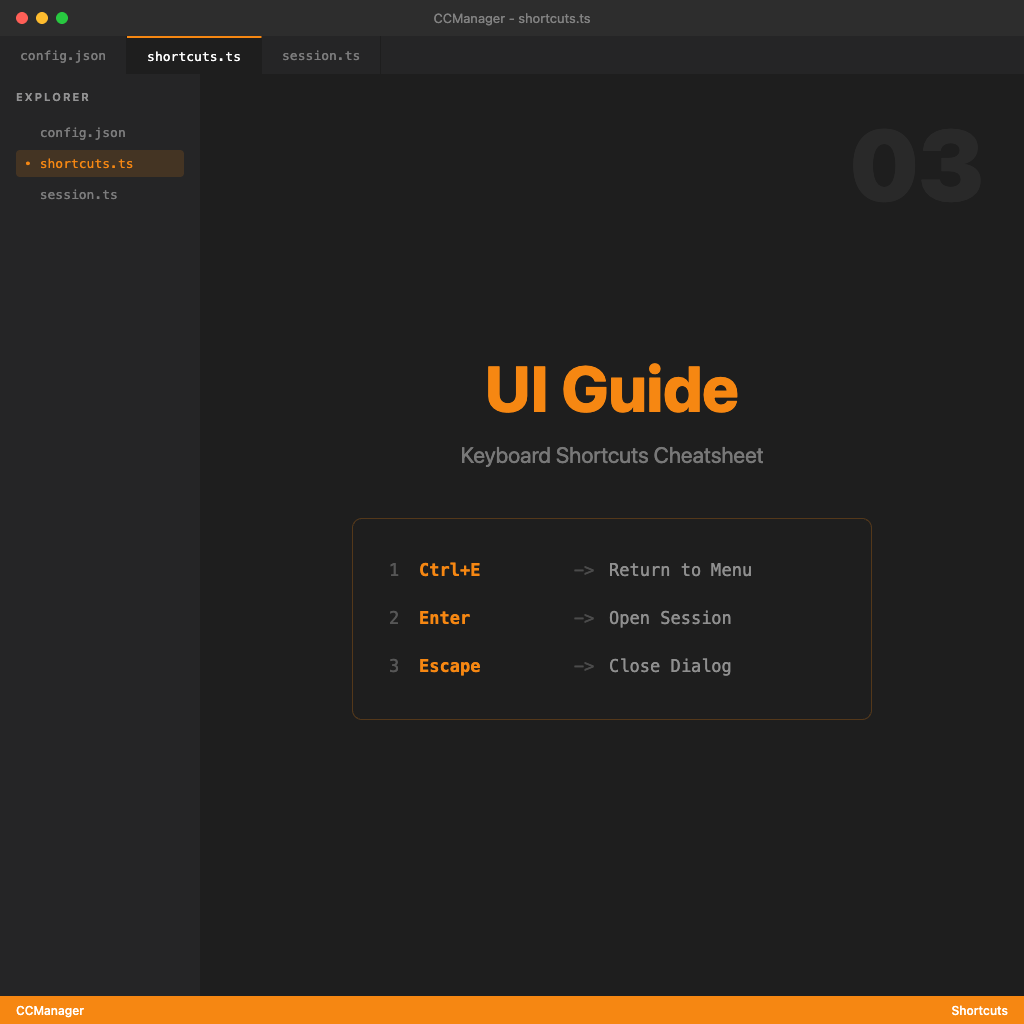
CCManager Interface Guide and Keyboard Shortcuts
Most tools look unfamiliar at first, but make sense after a few minutes of use. CCManager's interface is designed around the principle of "no manual required" — but there are a few interaction patterns worth understanding upfront so you're not mashing keys blindly.
Three Layers — Understand the Navigation Logic
CCManager's interface has three layers, each with its own interaction mode:
1. Main Menu
The first screen you see. Displays all Worktree sessions as a list. Each entry shows a live status: busy (running), waiting (waiting for your response), idle (done). The status updates in real time — no guessing, one glance is enough.
2. Session View
Select a Worktree from the menu to enter the full terminal emulator where the AI Agent runs. This feels exactly like a normal terminal — type commands, send input, interact with the AI.
3. Dialog
A temporary overlay that appears when creating Worktrees, adjusting settings, or confirming actions.
Navigation between layers:
- Menu → Session: select an entry and press Enter
- Session → Menu: press Ctrl+E
- Dialog → cancel: press Escape
Default Keyboard Shortcuts
Global Shortcuts (Work Anywhere)
| Shortcut | Action |
|---|---|
| Ctrl+E | Return to main menu from a session |
| Escape | Cancel / go back (dialog) |
Main Menu Shortcuts
| Shortcut | Action |
|---|---|
| ↑ / ↓ | Move up/down the list |
| Enter | Enter the selected session |
| Number keys 0-9 | Jump directly to the corresponding entry |
The minimal shortcut set is intentional — CCManager uses keys you already know, rather than asking you to memorize a new vocabulary.
Customizing Shortcuts
Don't like Ctrl+E? Change it. Two ways:
Option 1: From the UI
Main menu → Global Configuration → Configure Shortcuts — select the key combination directly in the interface.
Option 2: Edit the config file directly
Open ~/.config/ccmanager/config.json:
{
  "shortcuts": {
    "returnToMenu": {
      "ctrl": true,
      "key": "r"
    },
    "cancel": {
      "key": "escape"
    }
  }
}
Change returnToMenu to whatever combination you prefer. Save the file, and the new shortcut takes effect next time you open CCManager.
A few combinations are reserved by the system and can't be used:
- Ctrl+C
- Ctrl+D
- Ctrl+[ (equivalent to Escape)
Also, shortcuts must include a modifier key (Ctrl), with special keys like Escape being the exception.
Reading the Status Indicators
Every session entry in the main menu shows a status:
- idle: Agent is free, ready for a new task
- busy: Agent is processing, wait for it to finish
- waiting: Agent needs your input or confirmation — requires your attention
waiting is the most important state — it means the Agent is blocked and waiting for you. If you don't notice, it just sits there, and time slips away.
With Status Hooks configured, switching to waiting can automatically send a desktop notification — so you don't have to watch the interface, you only look when something actually needs you. Details in Status Hooks: Let AI Agents Notify You When They're Done.
Global Configuration Entry in the Menu
Scroll to the bottom of the main menu (or look for it directly) — there's a Global Configuration option. This is the central settings hub:
- Configure Shortcuts
- Configure Command Presets
- Configure Status Hooks
- Configure Worktree
- Other & Experimental (Auto Approval and other experimental features)
Most configuration lives here, so you don't need to dig through config files directly — though manual file editing is also an option.
With the interface logic down, the next important concept is Worktrees — they're the foundation everything in CCManager is built on.
If you're not yet familiar with Git Worktrees, go to What Is Git Worktree? Why CCManager Uses It and build that foundation before continuing to the operations articles.