Series: Ccmanager (8/10)
CCManager Complete Configuration Guide: Shortcuts, Command Presets, Per-Project Settings
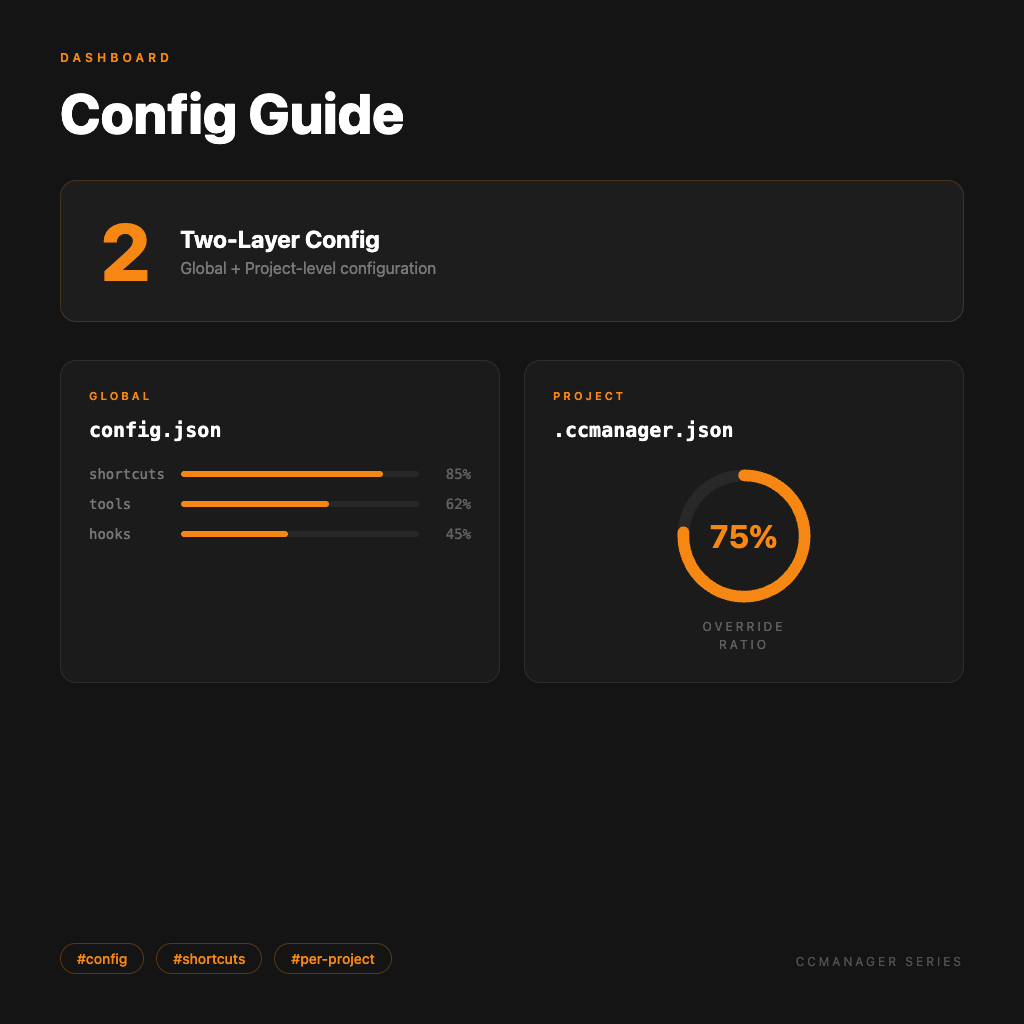
Most tools bury their configuration deep, requiring a long search before you find the right knob. CCManager is relatively straightforward — two config files, one global and one per-project, with a clear division of responsibilities.
This article explains both files and when to use each.
Two-Layer Configuration
CCManager's settings are split into two layers:
Global config (~/.config/ccmanager/config.json)
Shared across all repos. This is where your personal preferences live — shortcuts, default AI tool, status hooks, and so on.
Project config (.ccmanager.json)
Lives in the repo root directory and only applies to that repo. Can override any item from the global config, letting different projects use different tools or arguments.
The two files are merged, with project config taking priority — any item set in the project config overrides the same item in global config.
Global Config: config.json Structure
{
  "shortcuts": {
    "returnToMenu": {
      "ctrl": true,
      "key": "e"
    },
    "cancel": {
      "key": "escape"
    }
  },
  "commandPresets": {
    "command": "claude",
    "args": ["--resume"],
    "fallbackArgs": []
  },
  "worktree": {
    "autoDirectoryPattern": "../worktrees/{branch}",
    "copySessionData": false
  }
}
Field-by-field:
shortcuts
returnToMenu: Shortcut to return from a session to the main menu. Default is Ctrl+E — ctrl: true with key: "e".
cancel: Cancel / go back. Default is Escape.
commandPresets
command: Which AI tool to run. Default is "claude". Change to "gemini", "opencode", etc.
args: Startup arguments. "--resume" lets Claude Code pick up from the previous conversation.
fallbackArgs: Fallback arguments if the primary ones fail. Leave as an empty array if unused.
worktree
autoDirectoryPattern: Pattern for auto-generating Worktree directory paths. {branch} gets replaced with the branch name.
copySessionData: Whether to copy Claude session data by default when creating a new Worktree. true or false.
Project Config: .ccmanager.json
Place this in the repo root. Same format as the global config, but only include fields you want to override:
{
  "commandPresets": {
    "command": "gemini",
    "args": []
  }
}
This makes that specific repo use Gemini CLI, while all other global config settings (shortcuts, etc.) continue to apply.
When to use project config:
- A specific repo needs a different AI tool
- This project doesn't need
--resume, or needs different startup arguments - The team shares this repo and you want consistent CCManager behavior across everyone (
.ccmanager.jsoncan be committed to the repo)
UI Configuration vs. Direct File Editing
Most settings can be adjusted through the Global Configuration menu, without touching JSON files.
When editing the config file directly is faster:
- Copying and pasting an entire config (new machine, sharing with a colleague)
- Changing many settings at once
- Writing scripts that automate configuration
The UI prevents formatting mistakes; manual file editing is faster when you know what you're doing. Use whichever suits the situation.
Automatic Migration from Older Versions
If you used an older version of CCManager that stored shortcuts in shortcuts.json — no manual migration needed. On first launch of the new version, CCManager automatically merges shortcuts.json contents into config.json.
Configuration set up. The next step is automated notifications — Status Hooks: Let AI Agents Notify You When They're Done explains how to automatically trigger notifications or scripts when an Agent's status changes.
No more watching the terminal. Let it come to you.