Series: Ccmanager (3/10)
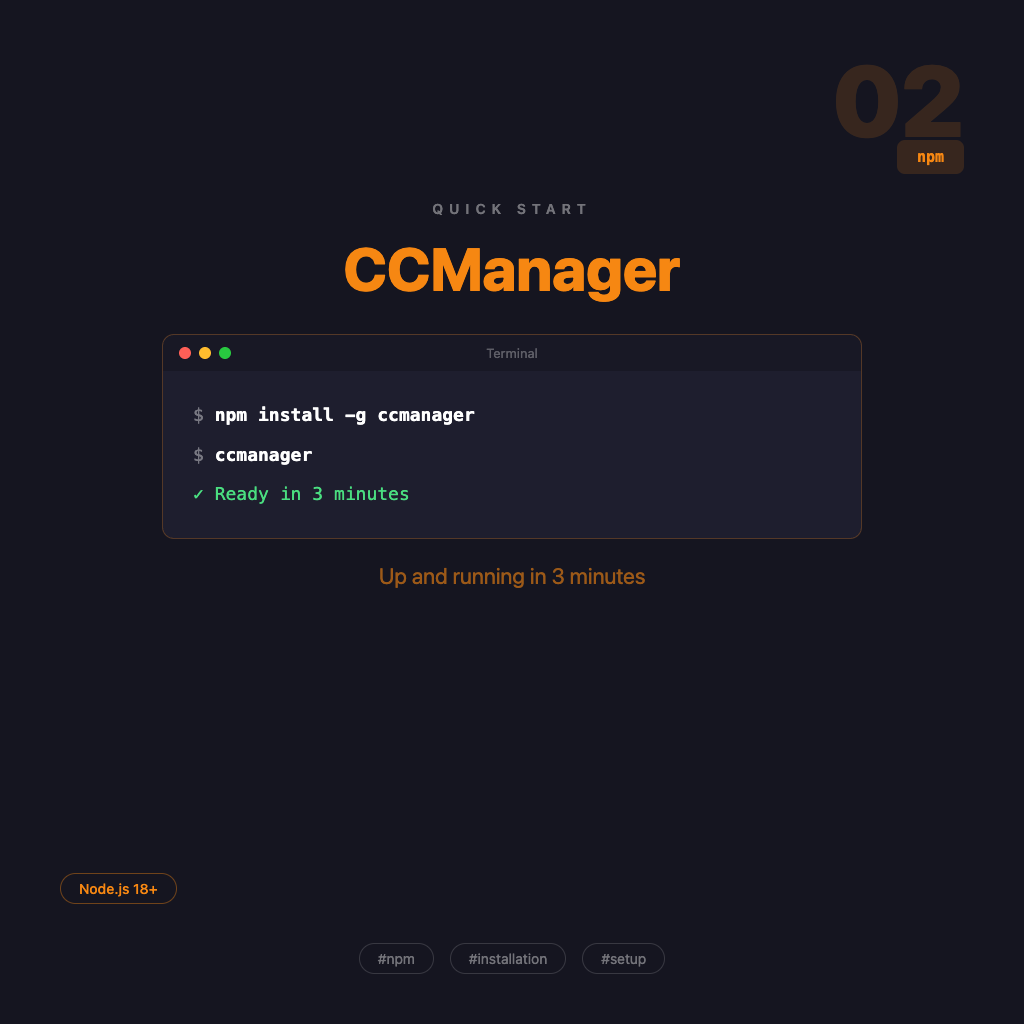
Installing CCManager: Up and Running in Three Minutes
The worst kind of documentation makes you understand three background concepts before you can run anything. This article isn't that — just get CCManager installed, running, and verified. Done.
Prerequisites: Node.js 18 or higher, and an AI coding CLI tool like Claude Code already in use.
Two Installation Methods — Pick One
Option 1: Global Install (Recommended)
npm install -g ccmanagerOnce installed, you can run ccmanager from anywhere without the npx prefix. If you plan to use it regularly, go with this.
Option 2: Zero-Install Run
npx ccmanagerWant to try it without installing it into your system — npx downloads and runs it directly, leaving no trace. Good for a first look before committing.
Verify the Install
After a global install, confirm the version:
ccmanager --versionIf you see a version number, you're good. If you get command not found, the npm global bin path probably isn't in your PATH. Add this line to your shell config (~/.zshrc or ~/.bashrc):
export PATH="$(npm bin -g):$PATH"Save, then source ~/.zshrc, and try again.
First Launch
In your project directory, run:
ccmanagerYou'll see the CCManager TUI interface — a menu-style list. This is where you'll manage all your AI sessions going forward.
The list will be empty on first launch — that's normal. You haven't created any Worktrees yet.
Create Your First Session
Select New Worktree from the menu, enter a branch name (e.g. feature/my-first-task), and CCManager will create the Git Worktree and open the corresponding session.
The session defaults to running claude (Claude Code). If you want to switch to a different AI tool, the Complete Configuration Guide covers how to set that.
Two Shortcuts to Remember First
No need to memorize everything right away — start with these two:
- Ctrl+E: Return to the menu from a session
- Escape: Cancel / go back
Learn the rest after you're comfortable with the basics. The full reference is in Interface Guide and Keyboard Shortcuts.
Installed, running, first session open — this article's job is done.
Next: head to CCManager Interface Guide and Keyboard Shortcuts to get comfortable with the interaction model. That's where the speed comes from.