Series: Claudesquad (5/10)
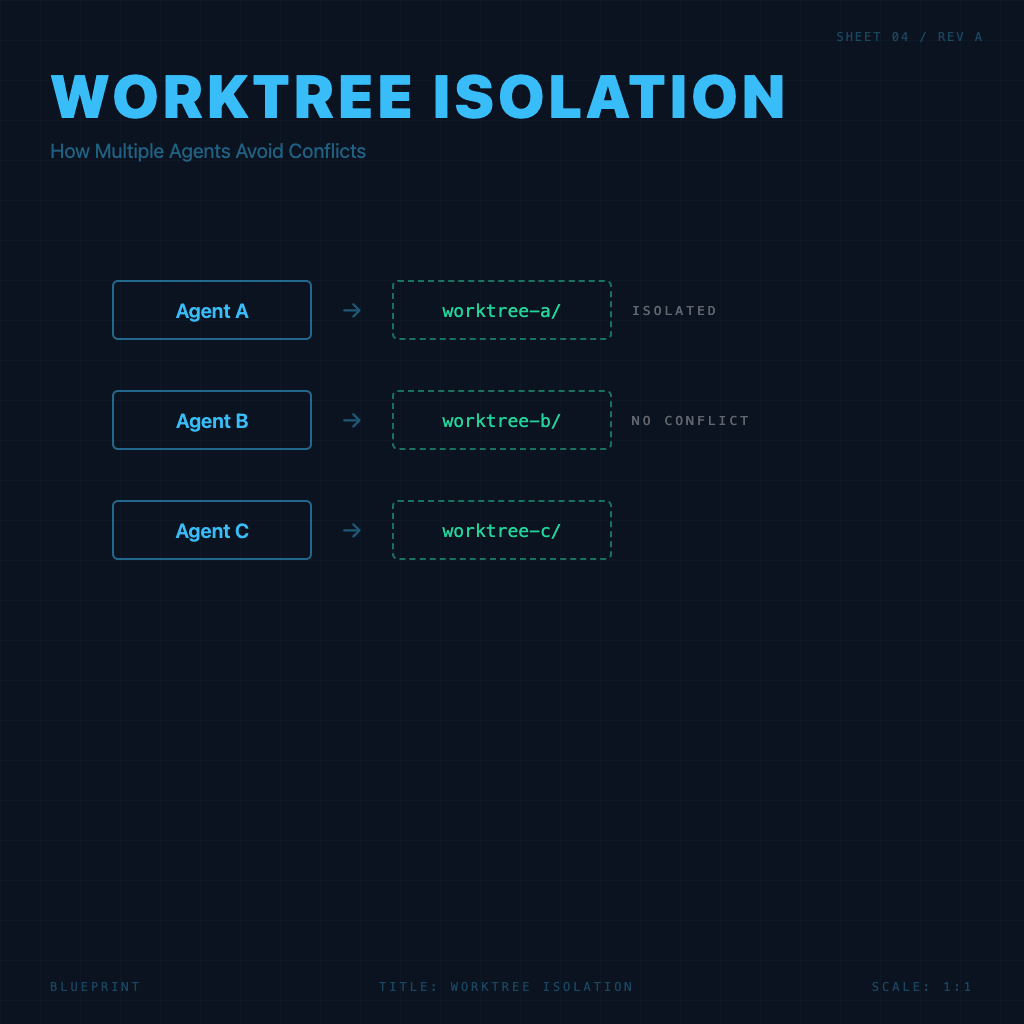
Git Worktree Isolation: The Key to Keeping Multiple Agents from Interfering with Each Other in Claude Squad
You have two agents working at the same time — one adding a new feature, one fixing a bug. If they're both modifying the same working directory with the same codebase, what happens?
Best case: git conflicts you have to resolve manually. Worst case: one agent's changes directly overwrite the other's and you don't even know it happened.
Claude Squad solves this with git worktree. This article explains how it works.
What Is Git Worktree
Normally your git repo has one working directory — you work in ~/projects/my-app, and when you checkout a branch, the files in that folder change to match that branch's content.
git worktree is a lesser-known git feature that lets you check out different branches in multiple directories simultaneously. Each directory is a real working directory with its own branch, and changes don't affect each other.
For example:
# Main working directory (main branch)
~/projects/my-app/

# Additional worktree (feature/auth branch)
~/projects/my-app--feature-auth/

# Another worktree (bugfix/login branch)
~/projects/my-app--bugfix-login/
These three directories point to the same git repo, but each checks out a different branch and they're completely isolated from each other.
How Claude Squad Uses Worktrees
Every time you create a new session in Claude Squad, it does several things in the background:
- Creates a new branch from your current branch (name is auto-generated with a timestamp)
- Creates a git worktree on that new branch, placed alongside the main working directory
- Starts a tmux session in that worktree directory
- Runs your configured AI agent inside the tmux session
All of the agent's operations — reading files, modifying code, creating new files — happen inside that isolated worktree directory. It cannot see or touch the working directories of other sessions.
What It Actually Looks Like
Suppose your repo is at ~/projects/my-app and you create two Claude Squad sessions:
~/projects/
├── my-app/                    ← Your main working directory (main branch)
├── my-app--claude-squad-1/    ← Session 1's worktree (cs/task-abc123 branch)
└── my-app--claude-squad-2/    ← Session 2's worktree (cs/task-def456 branch)
Each claude-squad-N directory is a complete, usable working directory — you can cd into it and all files are there. Running git log shows the commit history for that branch.
Checking Worktree Status
To see all current worktrees, run this from any worktree directory:
git worktree listOutput looks something like this:
/Users/you/projects/my-app            abc1234 [main]
/Users/you/projects/my-app--cs-1      def5678 [cs/task-feature-readme]
/Users/you/projects/my-app--cs-2      ghi9012 [cs/task-fix-login-bug]
First column is the path, second is the current commit hash, third is the branch name.
Worktrees Are Cleaned Up When Sessions Are Deleted
When you press D to delete a session in the Claude Squad TUI, Claude Squad will:
- Terminate the tmux session
- Remove the corresponding git worktree
- Remove that branch from the worktree list
You don't need to clean up manually. But if Claude Squad closes unexpectedly and leaves worktrees behind, you can clean them up manually:
git worktree pruneThis command removes all records for worktrees that no longer exist.
Bringing Agent Changes Back to Your Main Branch
After an agent finishes in a worktree, its changes are on its own branch. To bring those changes back to the main branch, you have a few options:
Option 1: Push directly in Claude Squad (recommended)
Select that session in the TUI, press s to push to GitHub, then open a PR on GitHub to merge. This is the cleanest flow and the easiest to track.
Option 2: Merge locally
# Make sure you're on the main branch
git checkout main

# Merge that session's branch
git merge cs/task-feature-readme
Option 3: Cherry-pick specific commits
If the session's branch has multiple commits and you only want some of them:
git cherry-pick <commit-hash>Why This Design Is Better Than "Opening Multiple Terminals"
Opening multiple terminals means multiple agents sharing the same working directory — any time agent A and agent B modify the same file, that's a conflict. There's no way to let two agents "simultaneously" work safely on the same codebase.
The worktree design makes "working simultaneously" truly safe: each agent has its own branch, its own working directory, its own commit history. What you do at the end is code review and merge, not conflict resolution.
This isn't just an efficiency question — it's the fundamental difference between whether parallel work is actually possible.
With worktree isolation understood, the next concept worth getting clear is auto-accept mode — letting agents run in the background while you do other things, with them notifying you when the task is done.
Previous: TUI Basics: Learn the Shortcuts and You're Ready to Go Next: Auto-Accept Mode: Let Agents Run in the Background While You Do Other Things