Series: Claudesquad (3/10)
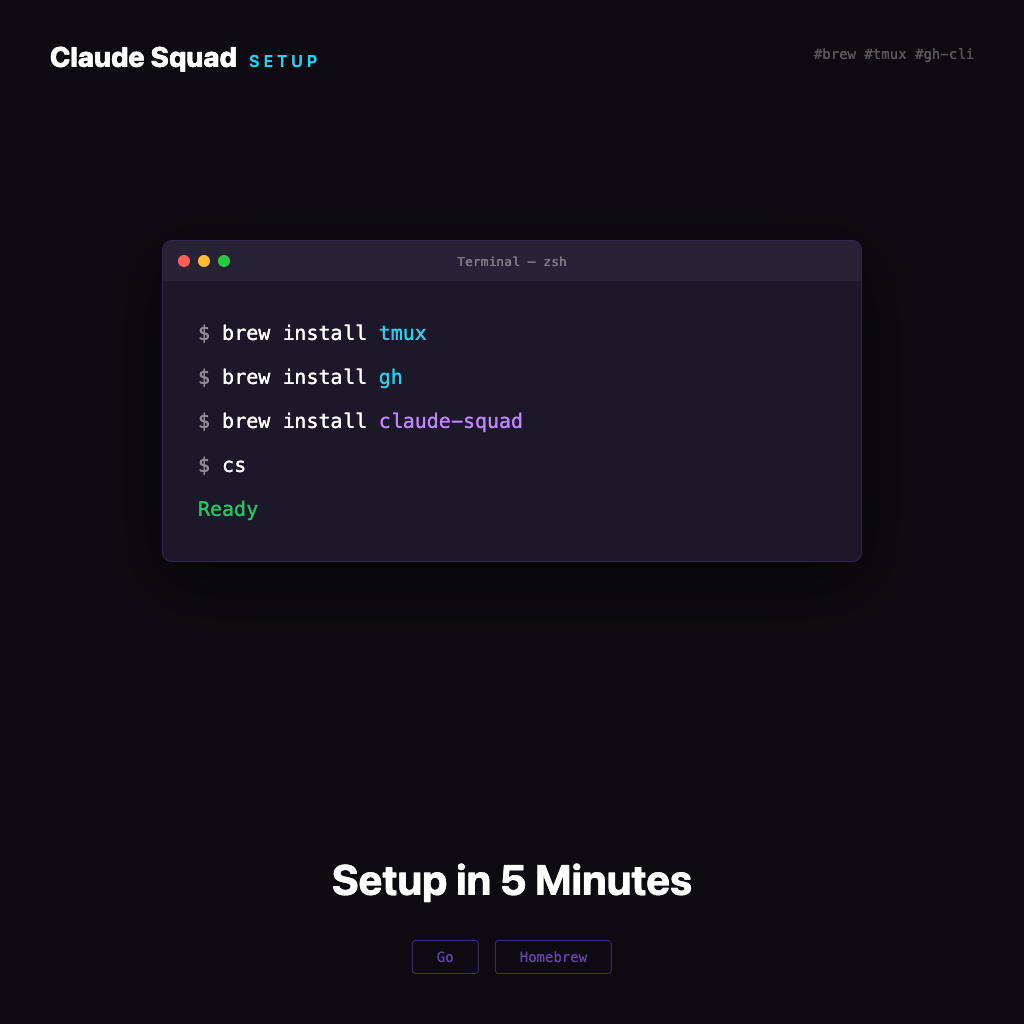
Installing Claude Squad: Get a Multi-Agent Terminal Environment Running in 5 Minutes
No fluff here — just follow along.
Claude Squad has two prerequisites you need to install first, then Claude Squad itself. The whole process takes about five minutes, assuming you have Homebrew. If not, go install it at brew.sh first.
Prerequisite: tmux
Claude Squad uses tmux under the hood for session management, so it must be on your machine:
brew install tmuxVerify after installing:
tmux -VIf you see a version number, you're good. tmux 3.x or higher works fine.
Prerequisite: gh CLI
Claude Squad needs gh when pushing branches to GitHub — this is GitHub's official CLI tool:
brew install ghAfter installing, log in to your GitHub account:
gh auth loginFollow the prompts: choose GitHub.com → HTTPS → browser authentication. Then run:
gh auth statusYou should see Logged in to github.com.
This step cannot be skipped: Claude Squad's
s(push to GitHub) feature requiresghauthorization. Without it, pressing that button will immediately throw an error.
Installing Claude Squad
Method 1: Homebrew (Recommended)
brew install claude-squad
ln -s "$(brew --prefix)/bin/claude-squad" "$(brew --prefix)/bin/cs"
The second line creates a symlink for the short cs command, so you can type cs instead of claude-squad every time.
Method 2: Manual Installation
If you don't use Homebrew, run this:
curl -fsSL https://raw.githubusercontent.com/smtg-ai/claude-squad/main/install.sh | bashThis installs the cs binary to ~/.local/bin. Make sure this path is in your PATH:
echo 'export PATH="$HOME/.local/bin:$PATH"' >> ~/.zshrc
source ~/.zshrc
Custom Binary Name
If you prefer a different name (e.g., squad), install like this:
curl -fsSL https://raw.githubusercontent.com/smtg-ai/claude-squad/main/install.sh | bash -s -- --name squadVerify the Installation
cs versionYou should see output similar to claude-squad version 0.x.x.
Also confirm the config file location:
cs debugThis command prints the config file path (usually ~/.claude-squad/config.json) and the log path — you'll need this when configuring profiles in the next article.
Quick Checklist
Run this quick verification:
# Check tmux
tmux -V

# Check gh login
gh auth status

# Check Claude Squad version
cs version
If all three produce output, your environment is ready.
Common Installation Issues
cs: command not found
For Homebrew installs, check if the symlink was created:
ls -la $(brew --prefix)/bin/csIf not, run the ln -s line again.
For manual installs, check that ~/.local/bin is in your PATH:
echo $PATH | grep localfailed to start new session: timed out waiting for tmux session
This error usually means your AI agent (e.g., claude) is outdated. Update it:
npm install -g @anthropic-ai/claude-code@latestOr use the update command for whatever tool you're running.
gh auth fails
Make sure your GitHub account has 2FA set up, then re-run gh auth login. Choosing browser authentication is usually the most reliable method.
With the environment set up, the next step is learning the TUI — mastering those keybindings is all you need to start really using Claude Squad.
Previous: What Is Claude Squad? A Terminal Management Tool for the Multi-Agent Era Next: TUI Basics: Learn the Shortcuts and You're Ready to Go