Series: Gstack (6/7)
QA and Browse: Give AI Eyes to Actually 'See' Your App
There's a blind spot in software development that's been ignored for a long time: AI can write code, but it can't see what the code looks like when it runs.
You ask Claude to write a login flow, it writes it, looks fine. You ask it "is the login page displaying correctly?" — it can't answer, because it's never opened a browser; it can only see code.
This blind spot is particularly dangerous with frontend changes, UI regressions, and auth flows — the problem isn't in the logic, it's in the visual state; it's not in the code, it's in what actually executes.
Gstack's /browse and /qa are designed to close this blind spot.
/browse: Give AI Real Eyes
/browse is backed by a persistent Chromium daemon controlled via Playwright:
- First launch: about 3 seconds
- Each subsequent command: 100-200ms (clicks, navigation, screenshots, form filling)
- Persistent state: cookies, localStorage, and open tabs are preserved between commands
- Auto-shutdown: automatically shuts down after 30 minutes of inactivity
Compared to Claude for Chrome MCP, Gstack officially claims a 20x speed improvement — because the architecture is different: Gstack's browse is a standalone compiled binary (58MB, compiled with Bun) that communicates directly with Chromium, bypassing the MCP round-trip.
What It Can Do
/browse https://your-app.com
AI opens your app, and then you can ask it to:
- Navigate to pages, fill forms, take screenshots
- Confirm whether certain elements appear
- Read console errors
- Inspect network requests
It uses accessibility-tree refs (@e1, @e2) to locate elements, not CSS selectors — so it won't break when you change a class name. It's more robust than typical Playwright scripts.
Testing Pages Behind a Login
Many important features are behind authentication walls. Standard automated testing requires setting up credentials and managing sessions — a lot of friction. Gstack's solution:
/setup-browser-cookies
This command opens an interactive picker where you choose which domains' cookies to import from your real browser (Chrome, Arc, Brave, Edge, Comet). After importing, /browse and /qa can test your authenticated state directly, no need to re-enter credentials.
Cookie values are never displayed on screen during the process — Keychain access requires your explicit approval, and the database is opened in read-only mode.
/qa: Not Just Looking — Finding, Fixing, Verifying
/browse is "giving AI eyes"; /qa is "having AI use those eyes to run a complete QA process" — the difference is the degree of automation and depth.
Diff-Aware Testing Mode (Default)
/qa defaults to diff-aware mode: it first analyzes your git diff, finds which pages and features are affected by the change, then only tests those affected parts.
This matters — if your app has 50 pages, you don't want to run the full E2E suite every time you change a button. Diff-aware makes the scope of testing proportional to the scope of the change: faster, more targeted.
Four Testing Modes
- Diff-aware (default): analyzes git diff, only tests affected pages
- Full exploration: runs the entire app, good for comprehensive checks before major releases
- Quick smoke test: quickly confirms core flows are still working
- Regression baseline comparison: compares against the previous baseline to find regressions
It Fixes What It Finds
The complete /qa cycle is:
- Analyze diff, decide which pages to test
- Open browser, actually test each page
- Find issues, auto-fix bugs (atomic commits)
- After fixing, re-test to confirm the fix worked
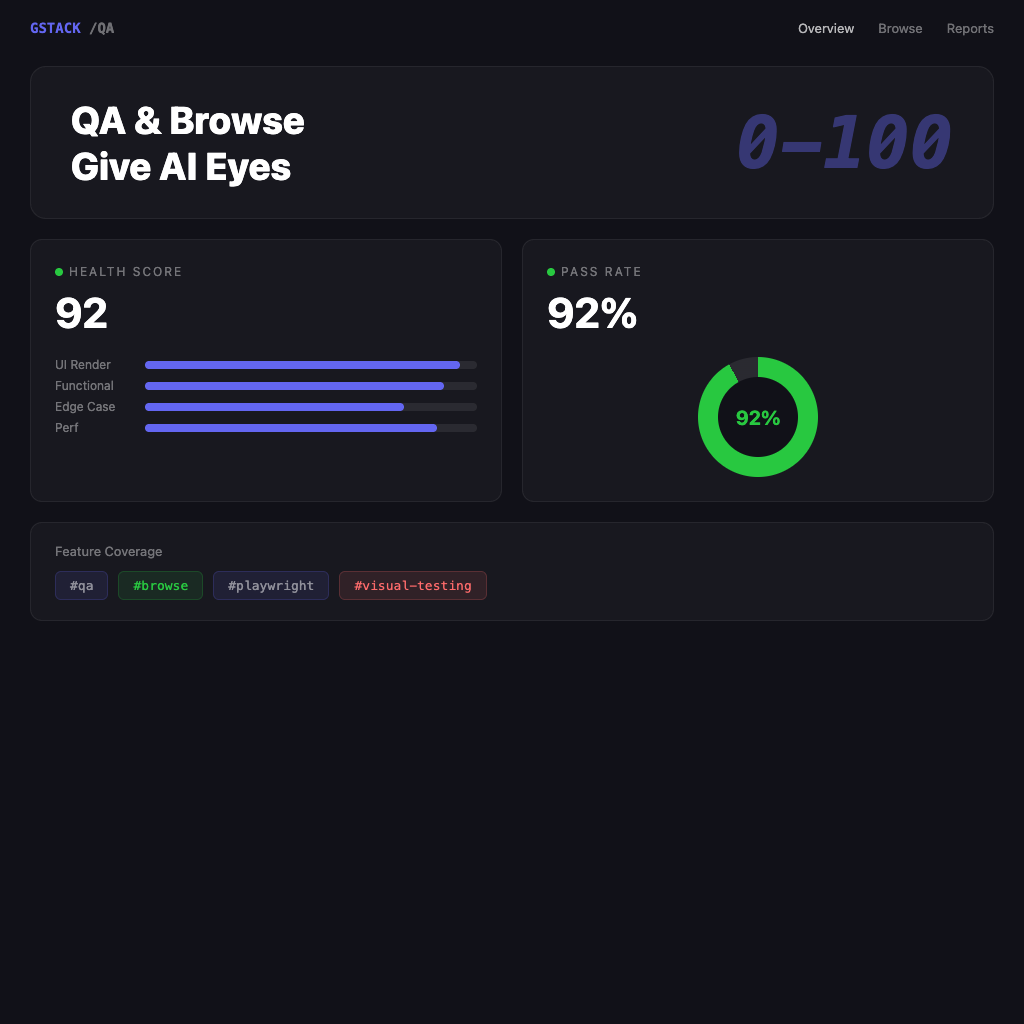
- Output a health score (0-100) and test report
The "it fixes what it finds" part deserves more explanation — it's not making random changes. It does the same diff-aware analysis as /review, modifies code directly related to the issue, and each change is an independent atomic commit so you can review them easily.
After /qa finishes, you can check git log to see what it did — each commit has a clear description.
/qa-only: Reports Without Touching Code
If you want a pure bug report — let AI test and tell you what's wrong, but not auto-fix anything — use /qa-only.
Good scenarios for this:
- You want to organize the bug report before assigning to team members
- You're not yet confident enough in auto-fixing to want it touching your code
Both skills use the same testing logic — the only difference is whether to auto-fix at the end.
How to Read the Health Score
The 0-100 health score from /qa is weighted based on the pages and features tested in that run.
Rough reference:
- 90+: Main flows are fine, maybe a few minor UX issues
- 70-89: A few things to watch, but core functionality works
- 50-69: There are blocking issues — fix before shipping
- Below 50: Critical problems, not recommended to ship
The score isn't absolute — it reflects "the health of what Gstack tested," not a guarantee that everything Gstack didn't test is fine. Treat it as a reference metric, not a final verdict.
Why /browse + /qa Are Worth Setting Up
Setting up browser cookies and learning the command syntax does require some initial investment. But what you get in return:
A QA process that normally requires you to open a browser, click through a dozen pages, and confirm there are no regressions — now runs with one command while you go get coffee and come back to the report.
For solo developers this benefit is especially clear — you can't always find time to do complete manual testing, but /qa can run a basic sanity check every time you push code.
Five posts' worth of concepts covered. The final post connects everything together, demonstrating Gstack's complete workflow with a real development scenario.
→ Real-World Dev Scenario: The Complete Gstack Workflow from New Feature to Production
Back to Series Overview
This is the fifth stop in the Gstack series, focused on /qa and /browse. For the complete reading path and other post topics, return to Gstack Beginner Course.